

Apps and upgrades
Check the package. Plan the rollout.
Install and update Splunkbase or private apps through a reviewed change plan. Inspect the release, package checks, and target hosts before approval. For non-clustered Splunk upgrades, check readiness and review the schedule before starting a run.
No credit card required · €10 one-time signup credit
Updated
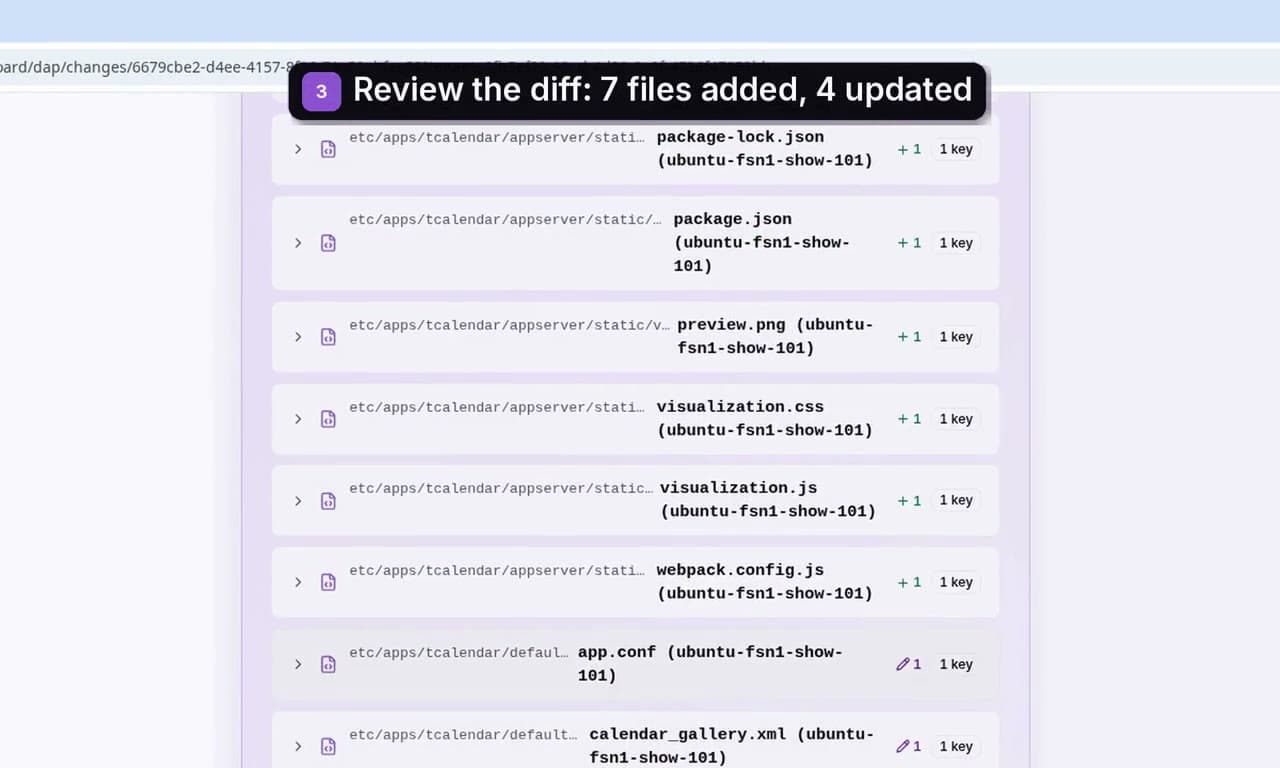
Walkthrough steps
Find an available app update, draft the update plan, review its targets, and approve it. Start the run, inspect its logs, and review the recorded outcome and activity history.
What you can do
- A selected release and named targets, with package differences available for review.
- Prerequisite checks and AppInspect reports where the installation path requires them.
- A reviewed schedule and per-host run history for non-clustered Splunk upgrades.
How it works
Choose the release
Find an app in the Apps Registry or start from a Splunkbase request in Chat. Select the release and target host. For private apps, review the package source. Resolve any missing Registry binding before preparing the change.
Check the prerequisites
Review the package checks, target access, and required AppInspect report. For a Splunk platform upgrade, check the existing installation, available storage, package compatibility, and live runtime evidence used to assess host readiness.
Review the plan
Inspect the target hosts and proposed file changes. App updates and Splunk platform upgrades use their respective planning flows. For a non-clustered platform upgrade, review the schedule and host groups before creating the request.
Approve, run, and verify
Have an authorized reviewer approve the request, then start the run. Follow each host’s progress and logs. Check the resulting app or Splunk version and fresh host observations; retain the plan and run history for follow-up.
Before you begin
- A selected package or release, with the Registry or Git source configured for the chosen workflow.
- Connected Splunkbase or AppInspect access where required, plus access to the target host.
- A supported installation path, passing prerequisites, and an authorized reviewer.
Common questions
Are app updates the same as a Splunk upgrade?
No. App updates change an app package. A Splunk platform upgrade changes the Splunk installation and has its own readiness checks and schedule. The platform upgrade workflow described here is for non-clustered hosts.
What does AppInspect add?
AppInspect reports package findings for review. Where the installation path requires a passing report, resolve its failures and required manual checks before continuing. A report does not replace review of the target environment.
Can I choose a version other than the saved default?
For supported non-clustered upgrades, you can select a stored target version that differs from the workspace default or host override. The wizard asks you to acknowledge that choice. The selected package must still pass readiness checks.
What about Splunk Cloud?
Splunk Cloud execution uses supported Admin Config Service (ACS) operations. Confirm the available installation path and package requirements for your stack. Victoria private-app support is not complete.
Related workflows
Further reading
Review your next app update
Choose one app and a target host. Inspect the proposed changes with your team before anything runs.
No credit card required · €10 one-time signup credit